Team
Every Pocper account comes with a team of its own — the workspace where all your clients, papers and templates live. Invite colleagues into it and you work on the same data. This is about coworkers, not the clients who fill in your forms.
1 · One shared workspace
A team is a shared space. Every member sees the same clients, papers and template folders and can open and edit any of them. There are no per-item permissions to set up.
You get your own team automatically when you sign up, and you can belong to other people's teams too. Whichever team you are in right now decides what you see.
2 · Invite your teammates
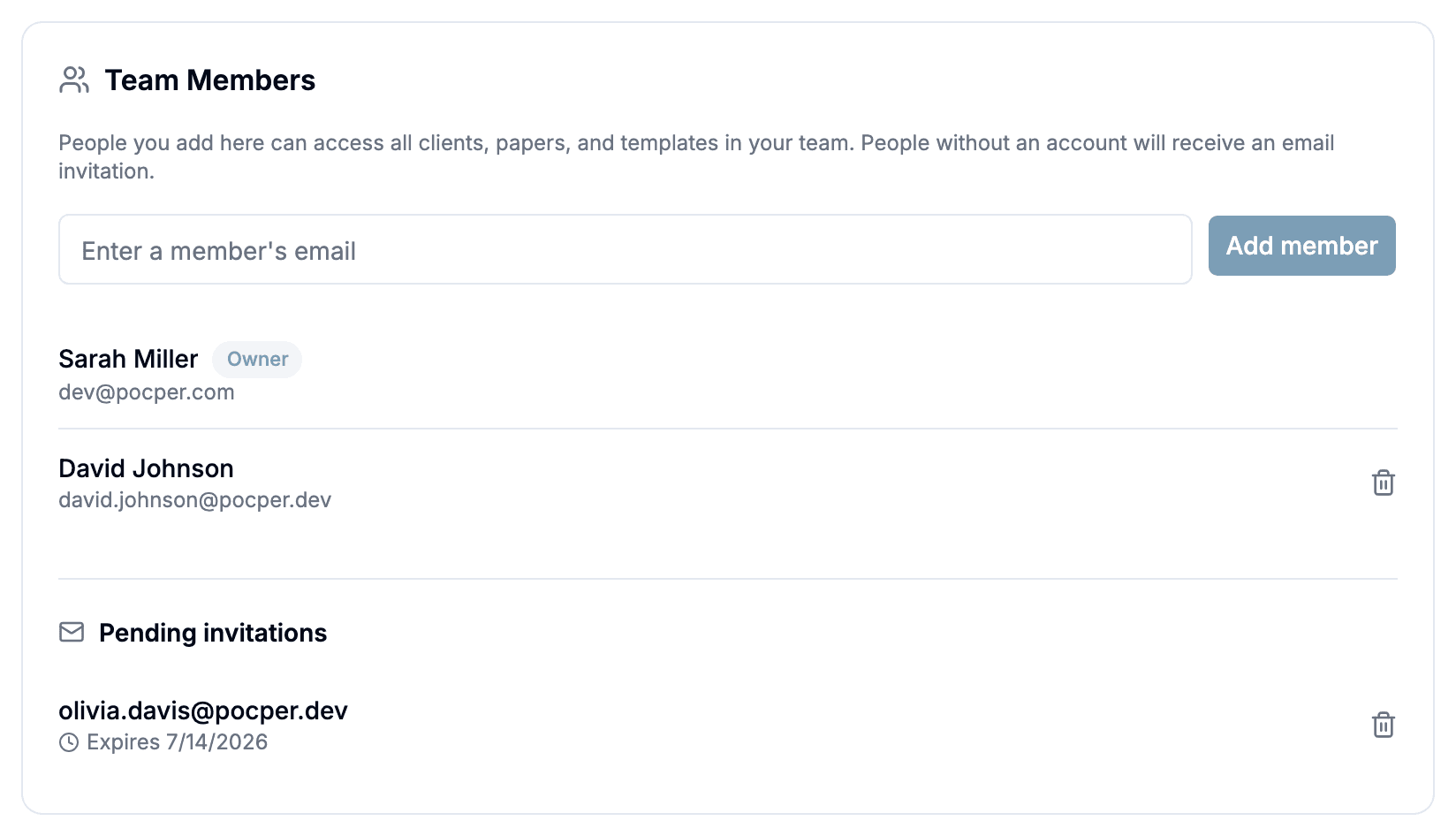
Open Settings → Team and type a colleague's email under Team Members. If they already have a Pocper account they join instantly; if not, Pocper emails an invitation and the address waits under Pending invitations. Invitations last 7 days and can be revoked anytime.
Only the team's owner can add or remove members. The owner keeps an Owner badge and cannot be removed; anyone else comes off with a single click.
3 · Joining a team
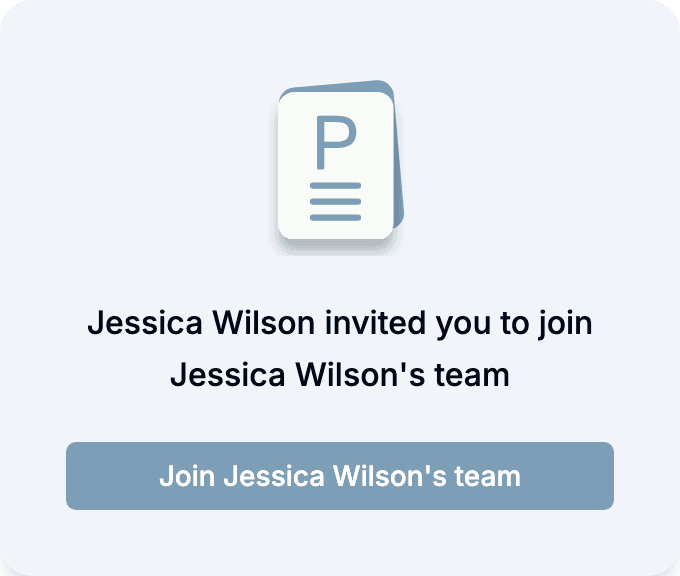
An invited teammate opens the link from their email and signs in with the exact address the invite went to — it has to match, so a forwarded link is useless to anyone else. New to Pocper? They sign up with that email first, then open the link.
One click on Join and they're in, dropped straight onto the client list of the shared workspace.
4 · Switch between teams
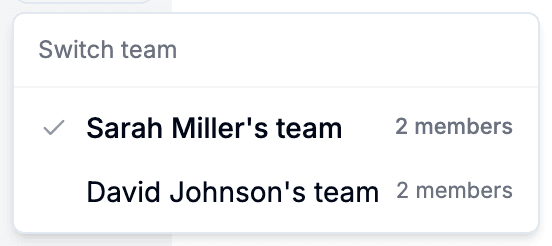
The team switcher lives in the sidebar. It lists the team you own plus every team you have joined, with a member count for each and a check on the current one. Teams are identified by their owner — there is no team name to set.
Pick another team and Pocper reloads into it; the clients, papers and templates all swap. Nothing is shared across teams.
5 · Leaving a team & the shared quota
To leave a team you joined, go to Settings → Team → Teams You've Joined and click Leave. You drop back to your own team and lose access to that team's data. You cannot leave the team you own.
The document quota belongs to the team and follows the owner's plan. Join the team of someone on a paid plan and everyone there gets the higher limit; the count is shared.
6 · Knowing when someone joins
Whoever joins gets a notification. The owner gets one too when someone accepts an invite link — not when the owner added the account directly.