Templates
A template is the reusable document behind everything you send. This covers what you do with one once you have it.
1 · Templates and template folders
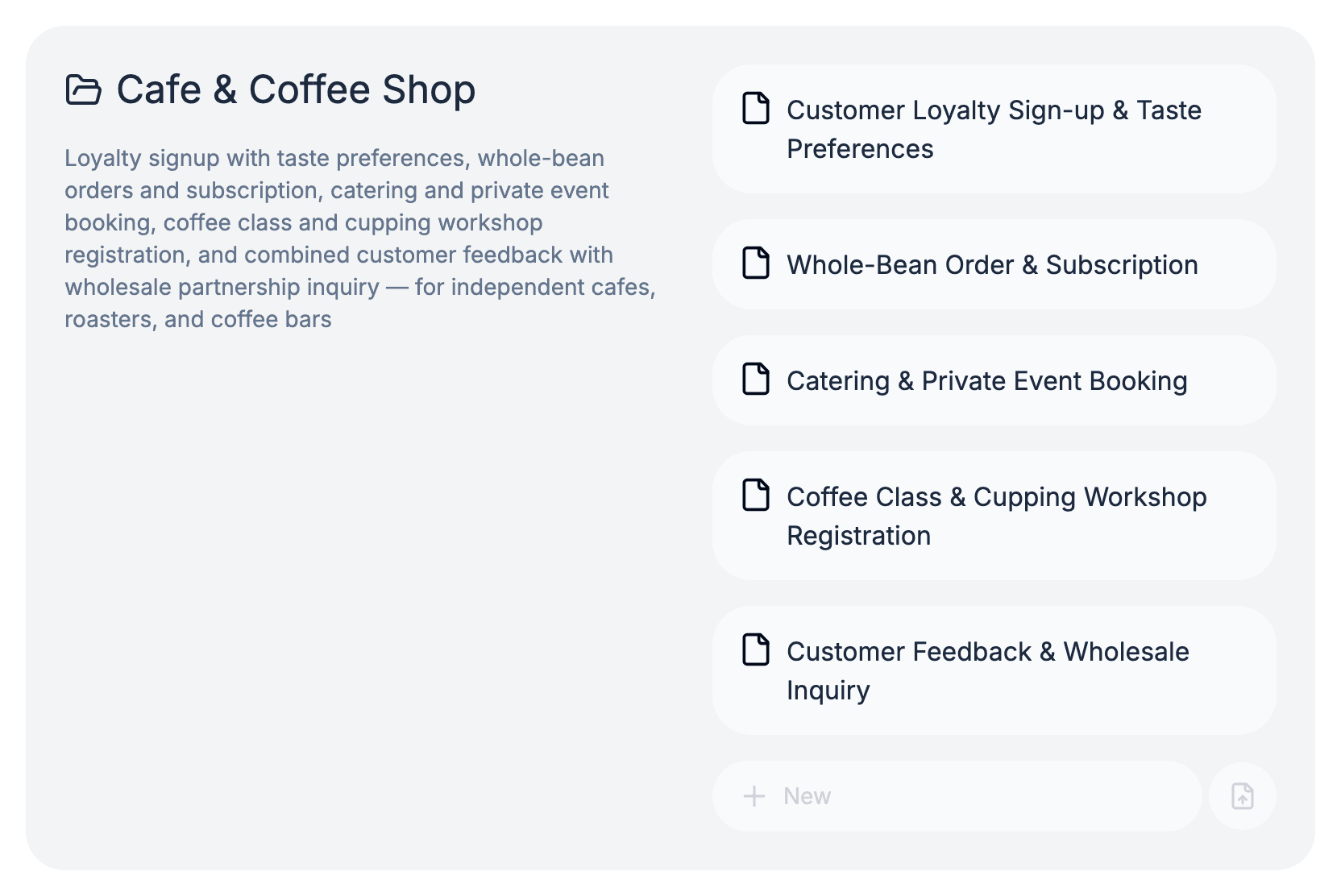
Every template lives in a template folder — a named bundle of documents that belong together: Onboarding, Intake, Year-end review. A folder is flat, so there are no folders inside folders.
A client's documents are grouped by template folder when you look at them later, so the way you bundle templates now is the way a client's history reads afterwards.
2 · Editing a template
Open a template to enter the editor. Click and type, drag to select. To add something someone can fill in, type a slash on a blank line and pick from the menu: short answer, long answer, date, time, checkbox, file upload, signature, table.
There is no save button and no draft mode: every keystroke is the saved state. A teammate can edit the same document at the same time, and you'll see their cursor.

3 · Checking it at the size they will see
Most people fill documents on a phone, and a layout that reads well on your monitor can be miserable on a small screen. The preview opens at phone width for that reason; tablet and desktop are a click away.
Do it before you share anything, especially with an imported document — a table designed for a printed page is the usual thing that needs rethinking.
4 · Publishing
Publishing takes a snapshot. Everything created from your link inherits the version that was current when you published, so you can keep editing without changing documents already underway.
Edits do not reach people until you publish again. Fix a typo, then publish.
5 · Renaming and deleting
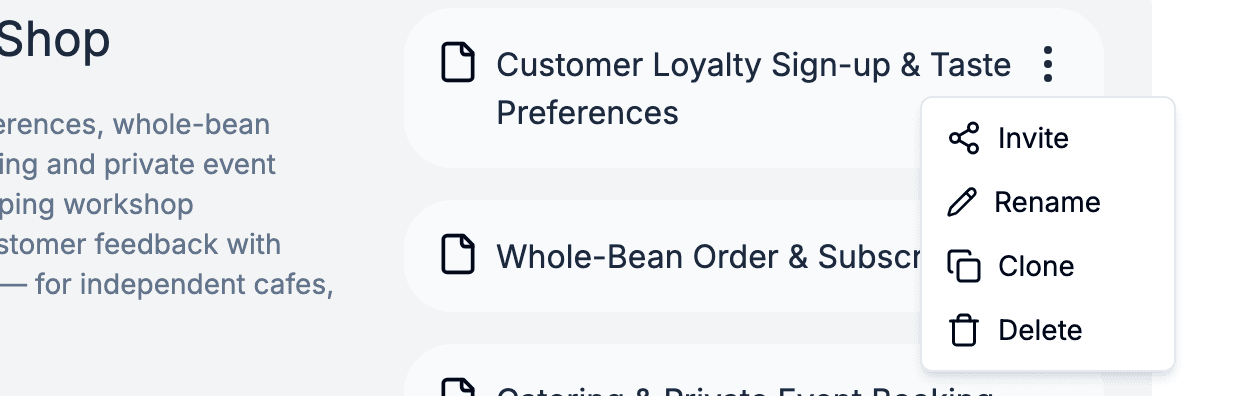
Rename a template from its menu, or — on a desktop — double-click its name in the breadcrumb above the editor and type over it.
Documents already created from a template stay exactly where they are, keeping their content, their status and their links. Deleting the template only stops you making new ones from it.