Folders
Folders are where a client's documents live, and which zone a folder sits in decides whether that client can see what's inside.
1 · Every client has two zones
Open a client and you get two areas. The top one carries the client's name: that's Shared, and the client sees everything in it. Below it is Internal — your notes, checklists and unsent drafts.
The zone is the only thing that decides visibility. There is no per-document share setting.
- Drag a document into Internal — the client stops seeing it.
- Drag it up into Shared — they see it.
Neither zone can be renamed or deleted, and there are no folders inside folders. A client's structure is always exactly two levels deep.
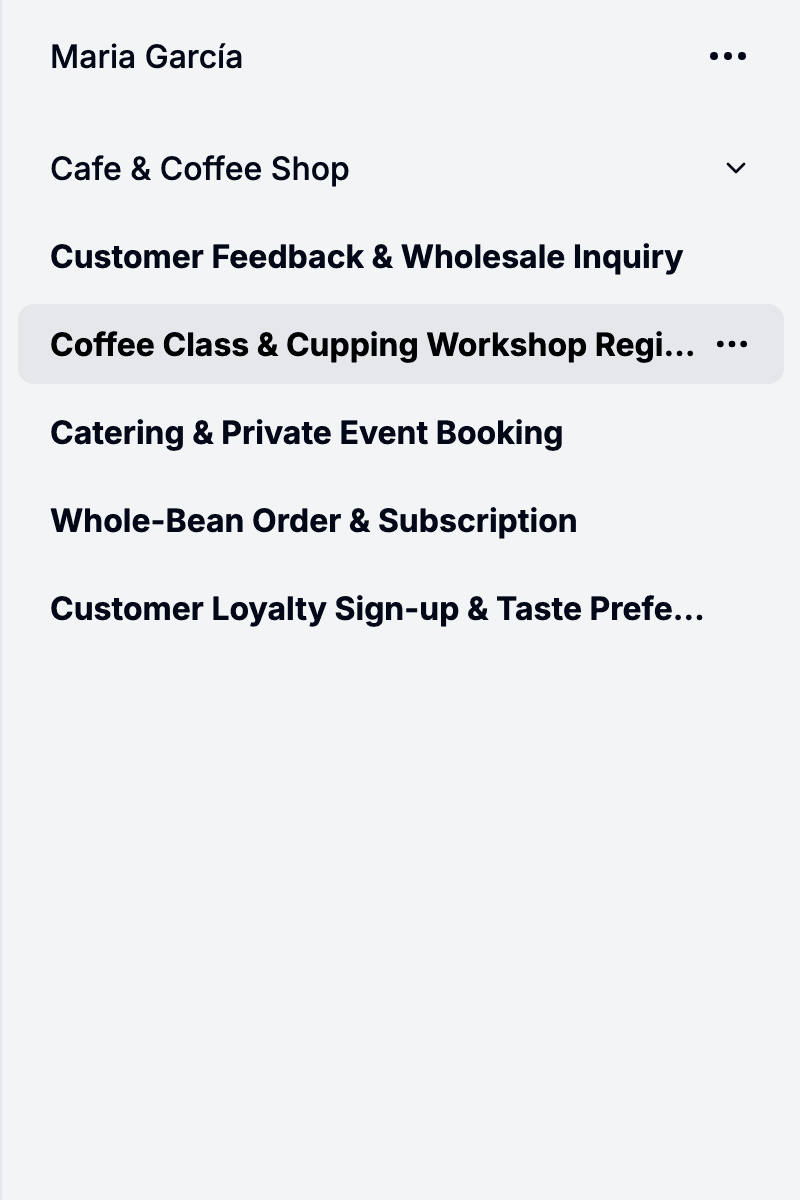
2 · How folders appear
Most folders make themselves. A document you start for a client lands in the folder matching its template folder — created on the spot if the client didn't have one. A share-link submission is the exception: it goes straight into the Shared zone.
You can also create one before a first appointment, so everything is ready when the client arrives. Folders keep the order you drag them into, per client.
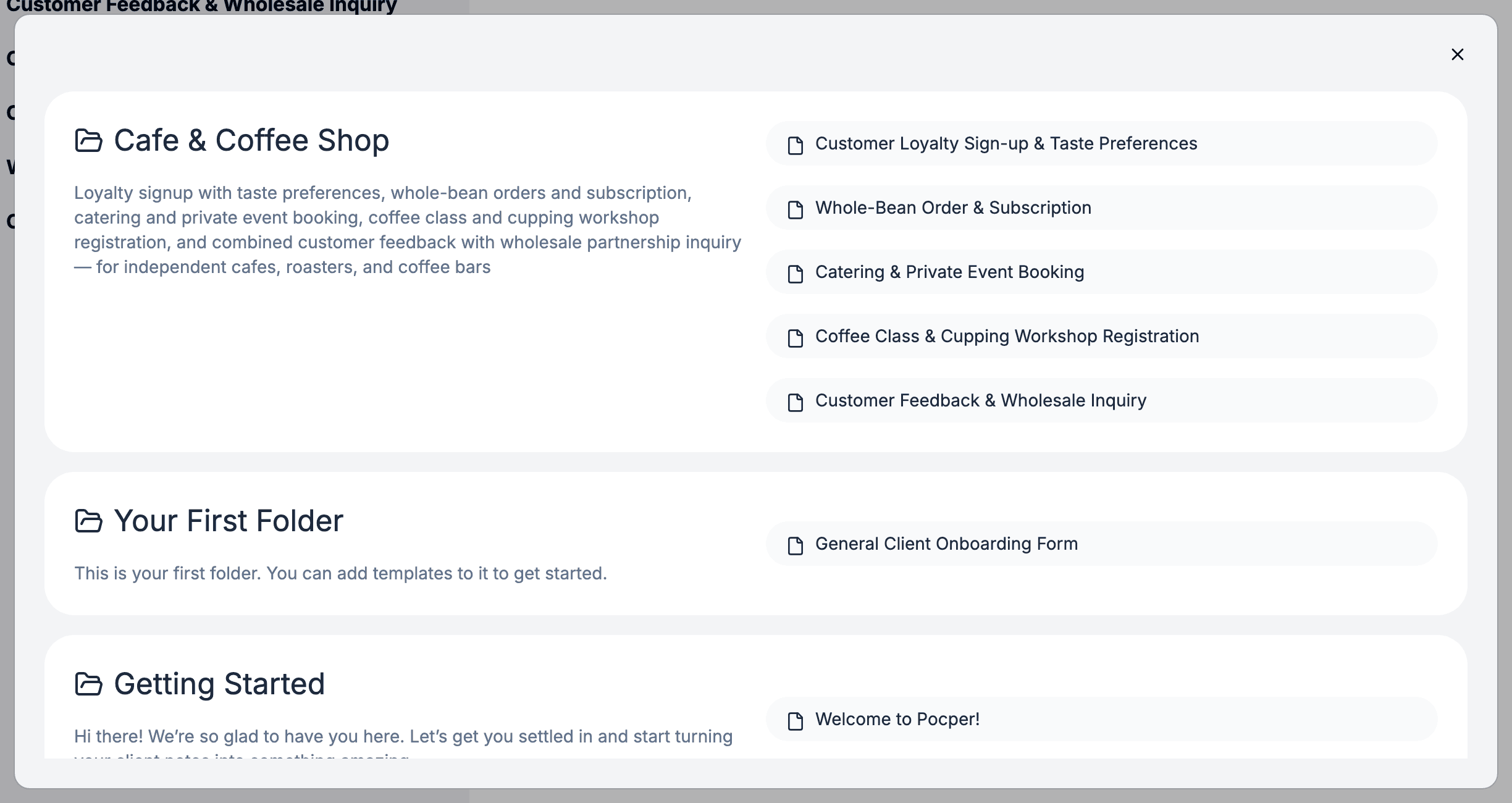
3 · What a row in a folder is
A row is not always a document — sometimes it's the offer of one. Which it is depends on the document's kind.
- Form — A create action, greyed out with a plus on it. Each click makes a new copy.
- Data — The document itself, even before anyone opens it. One per folder — click it and you're in that document.
- Agreement — Same as Data: one per folder, and the row is the document.
- Publication — A read-only reading entry. Every client opens the same document.
All four mix freely in one folder: an intake form you send repeatedly, a running record you both maintain, and the terms everyone reads.
4 · Moving
Rows drag between folders and between the two zones, within one client.
Drag a row onto a folder that already holds the same template and both rows stay — a template can appear more than once in the same folder.
Across folders it can appear as often as you like — one folder per property or per case, each running the same documents.
5 · Folders and template folders
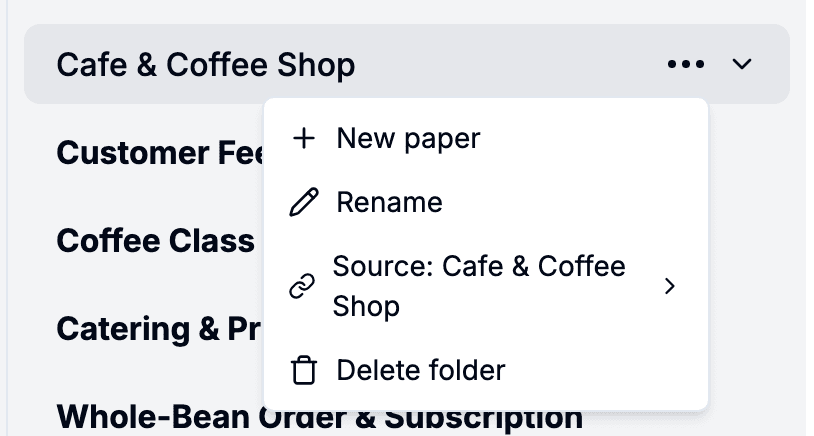
A folder follows one template folder, and you can repoint or unlink it from the folder's menu. Renaming a template folder does not rename existing client folders; only new ones take the new name.
Deleting a template folder unlinks every client folder that followed it and removes its rows from every client folder, wherever they were dragged — Form create rows, Data or Agreement rows nobody has opened yet, and Publication entries. Documents already created stay where they are.