Text formatting
The editor supports eight inline marks. Apply them from the toolbar, from the text menu that floats over a selection, with a keyboard shortcut, or by typing a markdown shortcut.
1 · How to apply a mark
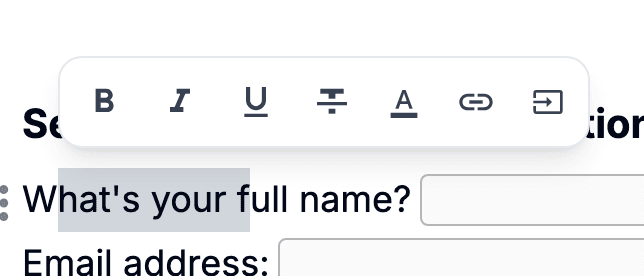
Select a range of text and the text menu floats up. Each mark has a button there — click to toggle on, click again to toggle off. The toolbar at the top has the same buttons.
Five marks have keyboard shortcuts — ⌘ + B, ⌘ + I, ⌘ + U, ⌘ + D and ⌘ + K for bold, italic, underline, strikethrough and link (⌘ on Apple devices, Ctrl on Windows, Linux and ChromeOS). Four also have markdown triggers (bold, italic, strikethrough, auto-link) that you can type as you write.
2 · Available marks
strongHeavier weight. Use it for emphasis, headings within a paragraph, or terms you want a reader to spot at a glance.
Toolbar / text menu / ⌘ + B / **bold**
emSlanted style. Use it for titles, foreign-language words, or softer emphasis distinct from bold.
Toolbar / text menu / ⌘ + I / *italic* or _italic_
uA line under the text. Most common in formal documents and forms — distinguish required terms from regular prose.
Toolbar / text menu / ⌘ + U (no markdown trigger)
delA line through the text. Use it for removed items, corrected mistakes, or as a casual "crossed out" effect.
Toolbar / text menu / ⌘ + D / ~~strike~~
text_colorCustom color for the text itself. Pick any color from the picker; the value is stored as a hex code.
Text menu → color picker
bg_colorCustom highlight behind the text. Same picker as text color; useful for marking key terms or sections that need review.
Text menu → background picker
linkWraps text in an `<a>` tag. Links open in a new tab and carry `rel="noopener noreferrer"` automatically for safety. Set the URL from the link menu.
Text menu → link / ⌘ + K / type a URL + space
data_annotationTags the selected text as a data point — a price, a date or a name that sits inside a sentence. It shows as a dotted underline while you edit; people filling in or reading the document see plain text. Select a tagged run and click again to lift the tag.
Toolbar / text menu (no shortcut or markdown trigger)

3 · Block conversion
These rules turn a plain line into a different block type the moment you hit space after the trigger. They fire only on an empty line that is still a Text block.
"# "Convert the line to a Heading block. Use one "#" for the largest level, up to four ("####") for the smallest.
"- "Start a Bullet list. The asterisk ("* ") and the plus sign ("+ ") work too — pick whichever is closest to your fingers.
"1. "Start a Number (numbered) list. Any digit followed by ". " works; the number itself is ignored — a new list starts at 1, and a line under an existing item continues its count.
"[ ] "Insert an empty Checkbox. The no-space form "[]" works as well — both expand to the same Checkbox.
"[x] "Insert a pre-checked Checkbox. "[X]", "[v]", and "[V]" are also accepted — cross or tick markers, whichever feels natural.
4 · Inline formatting
Wrap a span of text with these delimiters and the rule replaces them with the matching inline mark, as soon as the closing delimiter is typed.
**bold**Wrap text in two asterisks on each side.
*italic* or _italic_Wrap text in single asterisks or single underscores. Either delimiter produces the same Italic mark.
~~strike~~Wrap text in two tildes on each side.
https://… (then space)Type a full http:// or https:// URL followed by a space — Pocper wraps the URL portion with a Link mark. Whatever you type after the space stays outside the link.
5 · Smart typography
Three Western-typography conveniences ship enabled, running while you type prose. Chinese-style 「」『』 are not auto-handled — IME users insert those directly.
" or 'Straight quotes turn into curly ones as you type. The direction (open vs close) is inferred from the surrounding whitespace.
--Two hyphens become an em dash (—). Useful for parenthetical asides without reaching for a special character.
...Three dots become a proper ellipsis character (…). One glyph instead of three.
6 · Edit text
7 · Block structure
8 · Navigation
9 · Open menus
Type "/" on a blank line to open the slash menu — the same menu listed under Block types. Pick with the arrow keys and confirm with Enter, or click.
Select any range of text and the text menu floats up. From there, apply Bold, Italic, Underline, Strikethrough, Text color, Background color, Link or Mark as data without a keystroke.