Signature blocks
A Signature block captures a hand-drawn signature inside a document. You drop it into a template; the person filling the form draws with a finger, stylus or mouse, and the image is stored with their other answers.
1 · Insert a signature block
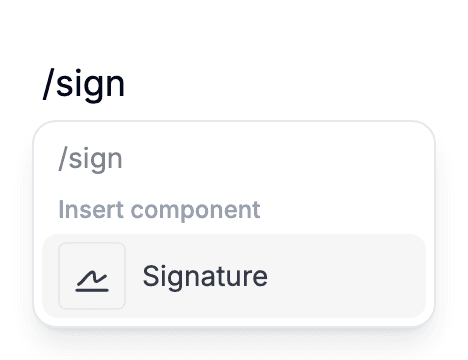
On a blank line in the editor, type a slash and pick Signature — both "sign" and "signature" filter to it. The Insert popover in the top toolbar has the same entry. A fresh block appears as a signature line labelled Tap to sign.
Like Short Input or Checkbox, a Signature block is a slot rather than content you author. You don't draw anything; every document created from this template carries that slot, empty, until a signer fills it.
2 · The signing experience
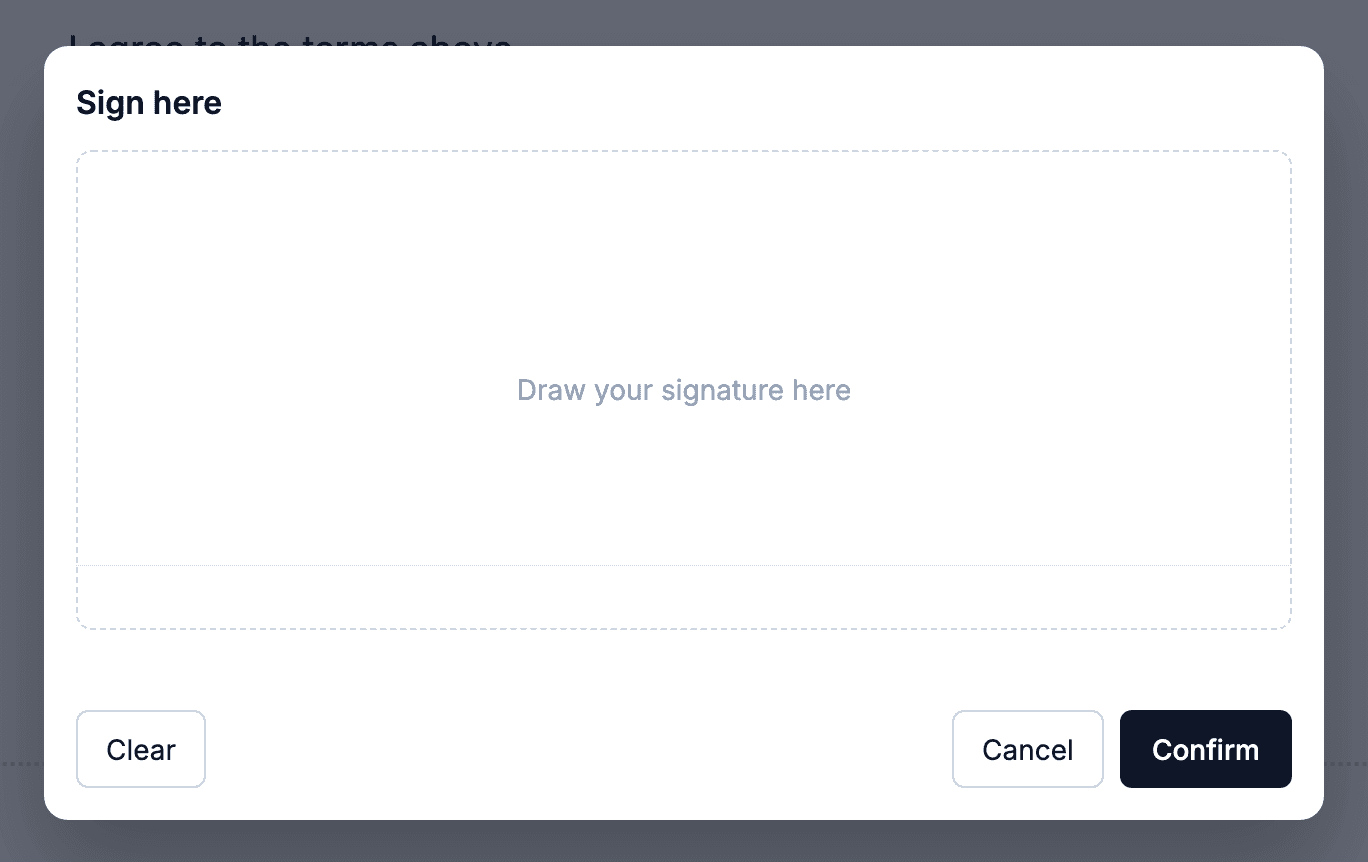
On the public form URL, tapping the signature line opens a full-screen signature pad. It accepts mouse, touch and stylus, and exports the strokes as a transparent PNG when the signer hits Confirm.
Confirm uploads the image and renders the signature inline. Tap the signature to reopen the pad and re-sign; the X in its corner removes it and brings back the empty signature line. Once the document is submitted or locked, the signature locks with it — no more edits, no re-signing.
3 · Compose with name and date
A Signature block stores only the image — no signer name, no timestamp. You decide which other fields belong next to it.
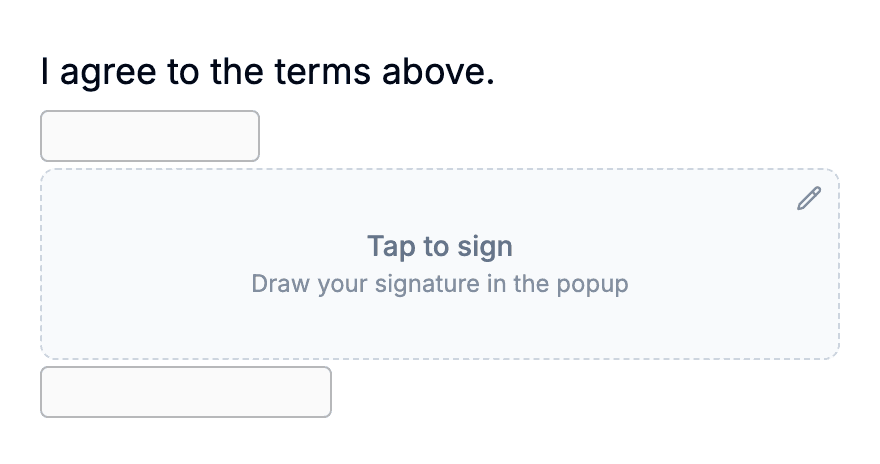
For consent or contract layouts, put a Short Input (signer's name) and a Date Selector beside the Signature block. Each is its own block, so the answers land as separate fields. A common pattern: a sentence like "I agree to the terms above", then a name, then the signature, then a date.
4 · What a Pocper signature is, and is not
A signature block stores a drawing. It is a good record of someone signing in front of you or agreeing to terms on their own phone — a consent form, a delivery receipt, a house-rules acknowledgement.
It is not a qualified electronic signature. Pocper does not verify who drew the line: no identity check, no certificate issued with the document, no signed audit trail of IP addresses and timestamps. If your document needs any of that, use a service built for it.