Clients
A client is one of the people or organisations you work with — a patient, a customer, a tenant, a student. They never need a Pocper account, and most arrive without you doing anything.
1 · How people arrive
Most clients create themselves. Someone opens a link you sent and starts the document; Pocper creates the client record right then, before the document is even filled in, and files it under them. If the link asked for neither a name nor an email, the record shows as "New Client" until you edit it.
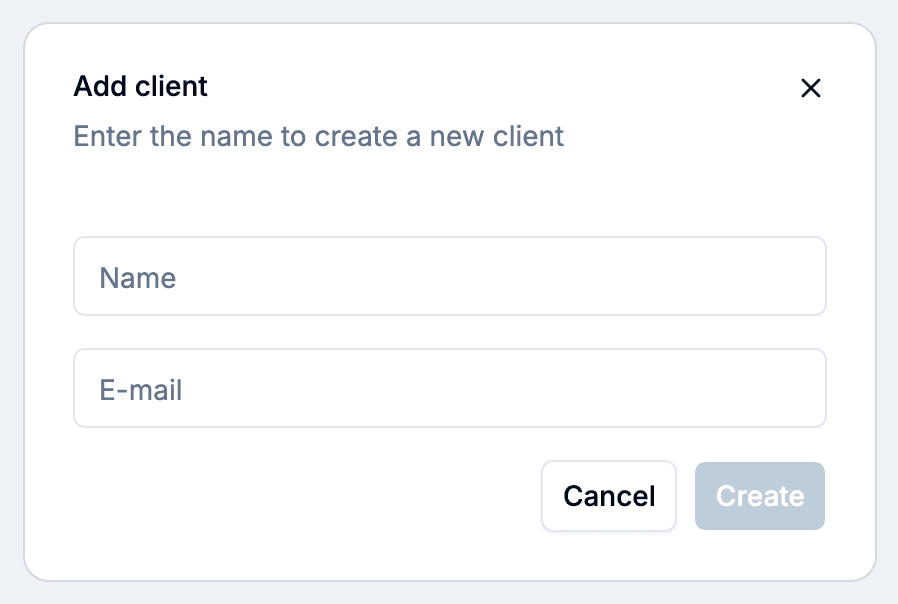
You can also add someone by hand before a first appointment, so their documents are ready when they walk in. A name is enough; email is optional, and it is what lets you send a portal link later.
Unless a share link has auto-archive turned on, every document started from it creates a new client — even by someone who has filled the same form before. Turn it on for a form your regulars use repeatedly. If duplicates do build up, two client records can be merged into one.
2 · Finding someone
The client list is searchable and paged rather than an endless scroll. Search by name and open the row.
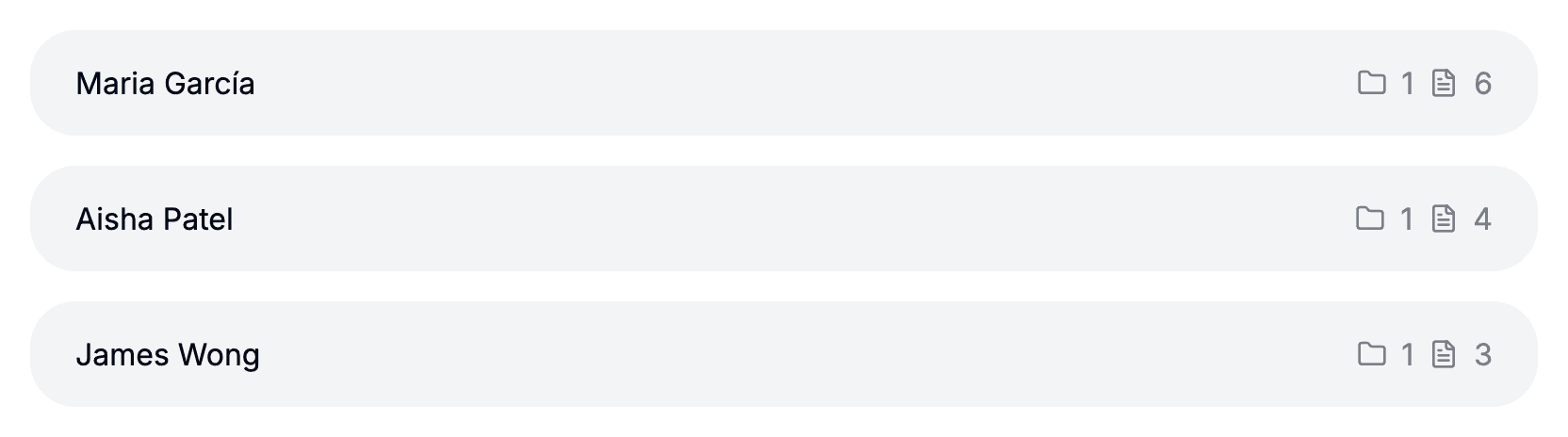
A client's page holds everything you have for that person, without you having filed any of it. The documents you start for them are grouped rather than dumped in a list; section 4 covers what decides the groups, and where a share-link submission lands instead.
3 · Their details
A client's name and email can both be edited from the client's own page. Correcting a name changes nothing else: documents, folders and links stay where they are.
Fill in the email even if you have no plans to use it. It is where a portal login gets sent, and it is what auto-archive matches on when the same person comes back.
4 · Why their documents are already sorted
The documents you start for a client are grouped by the template folder each one came from, so an onboarding form, a quarterly review and a service agreement land in three separate groups. A document submitted through a share link is the exception: it goes straight into the client's Shared zone, where they can see it in the portal.
You never file anything yourself. Start a document for a client from a new template folder and it appears in a new group; nothing else moves.