Sharing and inviting
A template is only useful once someone else can open it. There are two ways: a link to a template that anyone can fill, or an invitation to one specific document.
1 · Share a template
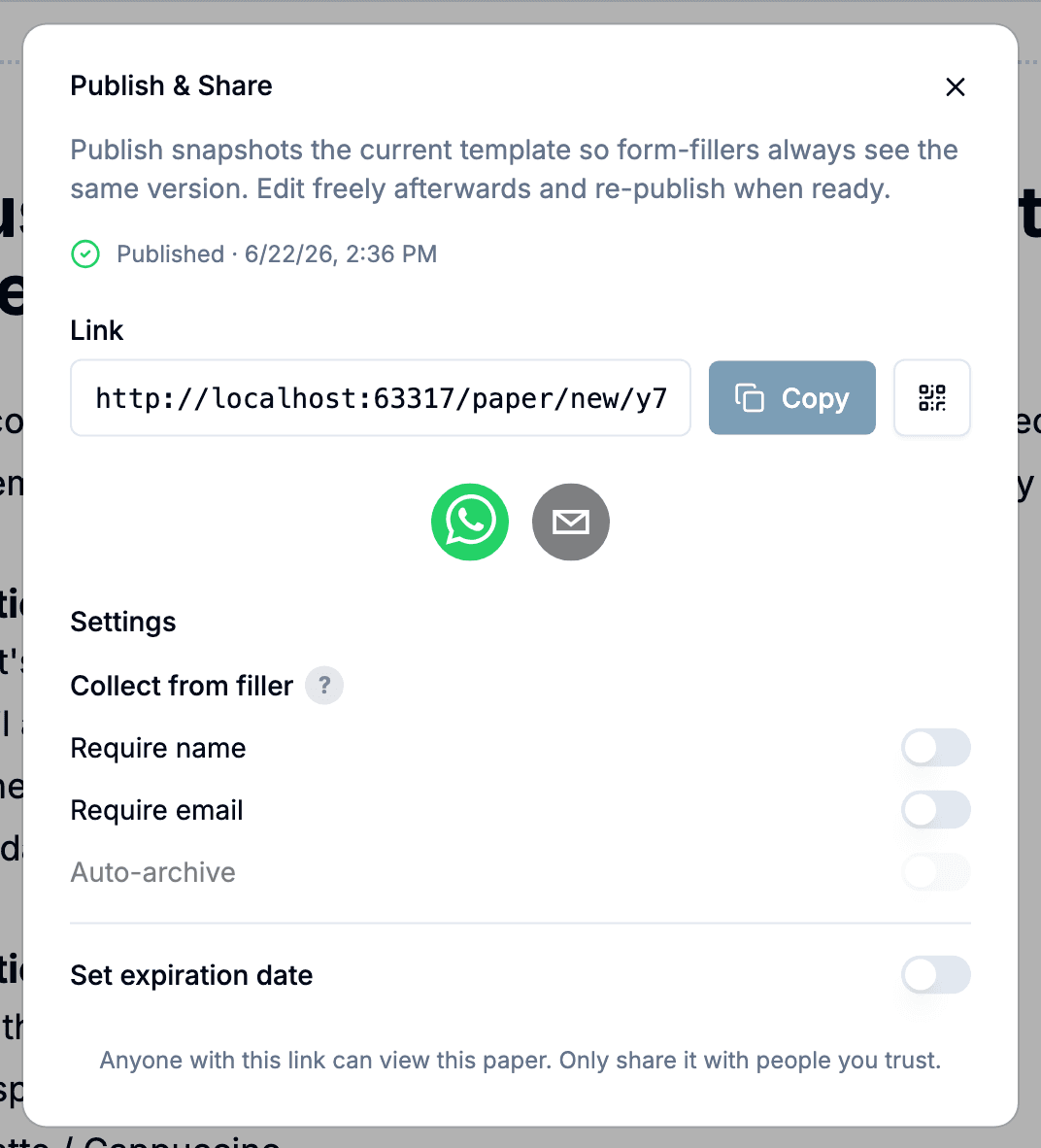
Click Publish in the editor toolbar. Publishing takes a snapshot: everything created from this link inherits the version current when you published, so you can keep editing without disturbing documents already underway.
The dialog hands you the link and a QR code. Anyone who opens it gets their own copy to fill in, and each copy files itself as a separate document. Use this when you do not know in advance who will fill it — a booking form on a business card, an intake form you send to whoever asks.
2 · Invite one client to one document
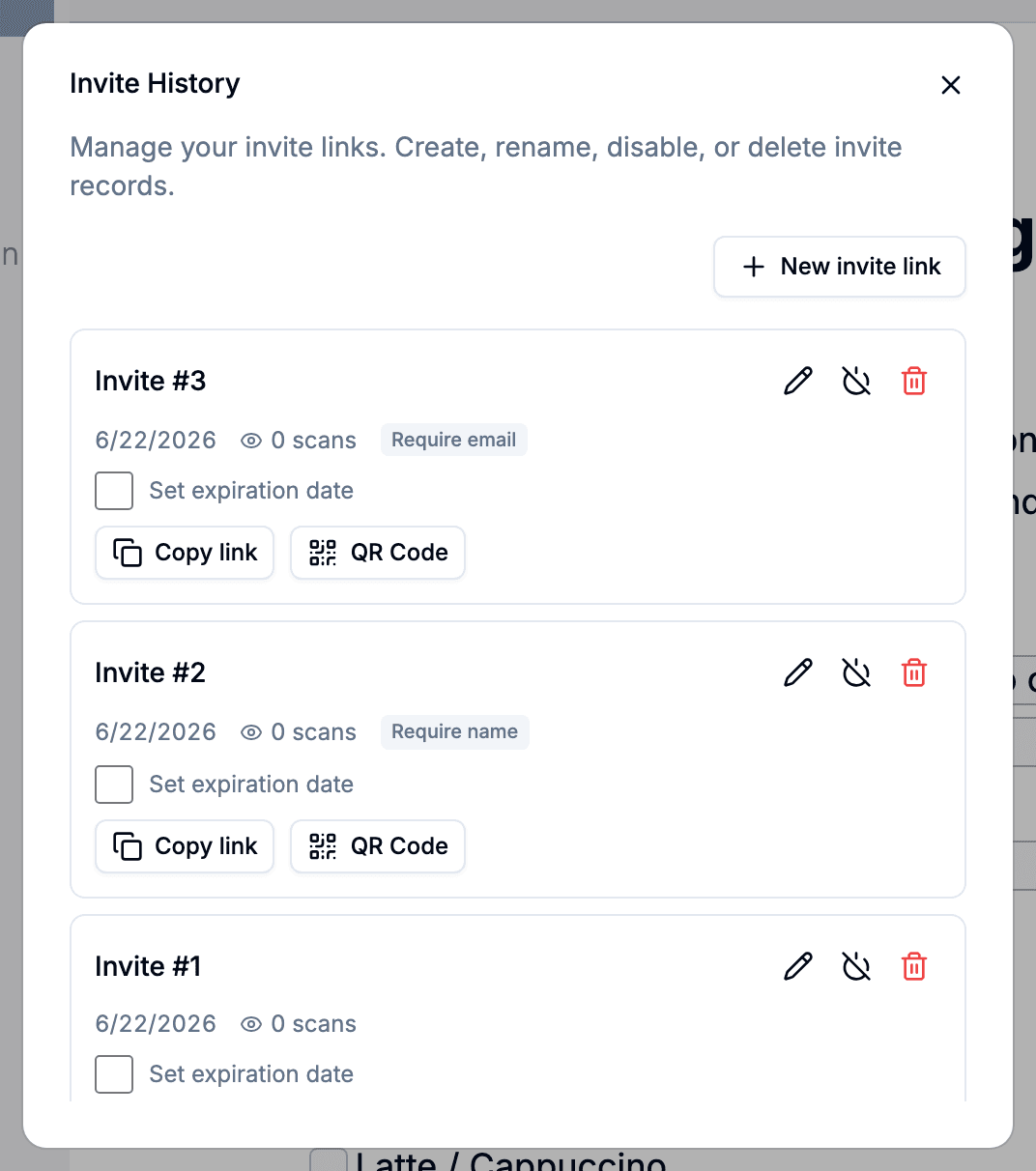
Sometimes you want this person to fill in this document. Open the document and choose Invite. Instead of the publish dialog you get Invite History — a list of invitation records with a New invite link button — and each link points at that one document rather than at the template, so everything filled in goes back to the same record.
Each invitation is its own link. Invite the same person twice and you have two links you can switch off independently.
3 · What the link asks for
The settings section is collapsed until you open it, because most links need none of this.
- Require name and require email — the person is asked for it before the document opens. It is a request, not a check: they can leave it blank. Worth turning on for an open link, since it is how you learn who filled it in.
- Set expiration date — the link stops working after a date you choose.
- Auto-archive — despite the name, this is about returning clients rather than archiving. Leave it off and every submission creates a new client. Turn it on and a submission from an email Pocper has seen before is filed under that existing client — as a new document; a share link never opens an existing one. Useful for a form the same people fill in repeatedly.
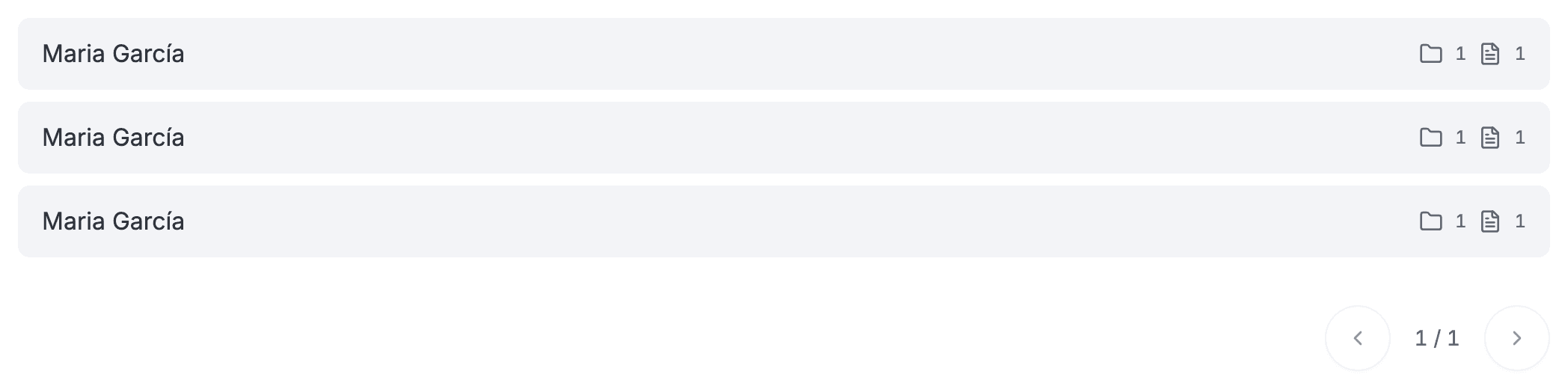
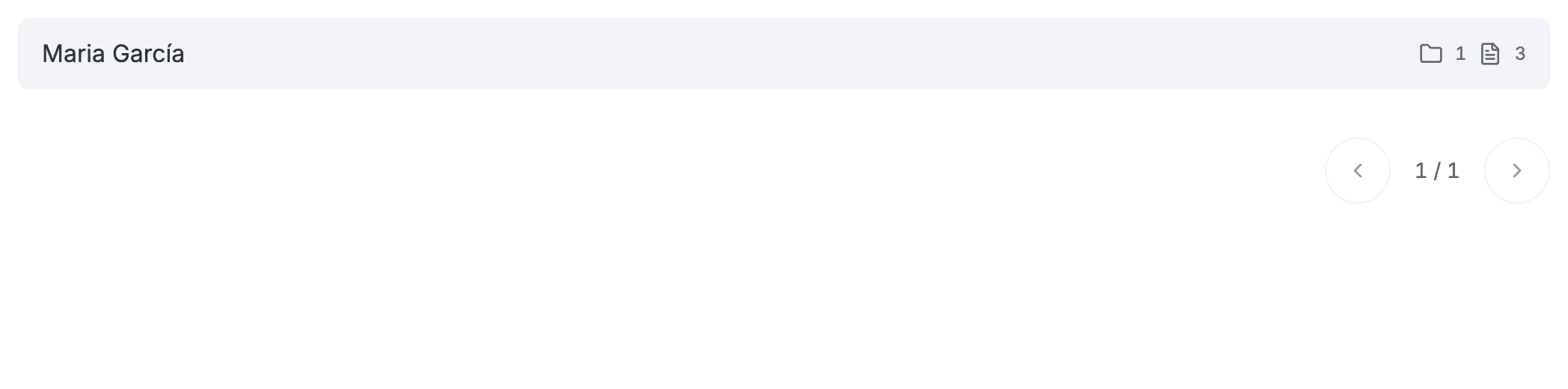
Pocper counts how many times a link has been opened, and there is no limit on that number — one link serves everyone you share it with, even a full room scanning the same QR code at once. The count is shown for single-document invite links, in Invite History.
4 · Look at it first
The dialog has a preview link that opens your latest draft at phone, tablet and desktop widths, so you catch something that falls apart on a phone before you send it. It shows what you are editing, not what you published, so it will not catch a template you edited but never re-published — the dialog flags that itself, with an unpublished-changes notice and a Re-publish button.
5 · When a link stops working
A link past its expiry date tells the visitor so, in their own language. Someone who sat on your email for three weeks knows to ask you for a new one.
Switching a link off is different: the visitor is told it is locked and to check back later, not to ask for a new one — because turning it back on reuses the same link. Documents already created from a link are untouched by expiry or by switching it off — they belong to the client now, not to the link.