Pocper AI
Pocper AI is a faster way to get a first draft onto the page, inside the workspace you already use. Describe the document you need and a template or a client's paper is written for you to review; or ask for a change to an open document and see it marked up before it lands. Nothing it does is final until you apply it.
This article is the reference. For the short version, see the Pocper AI page.
1 · Where it is
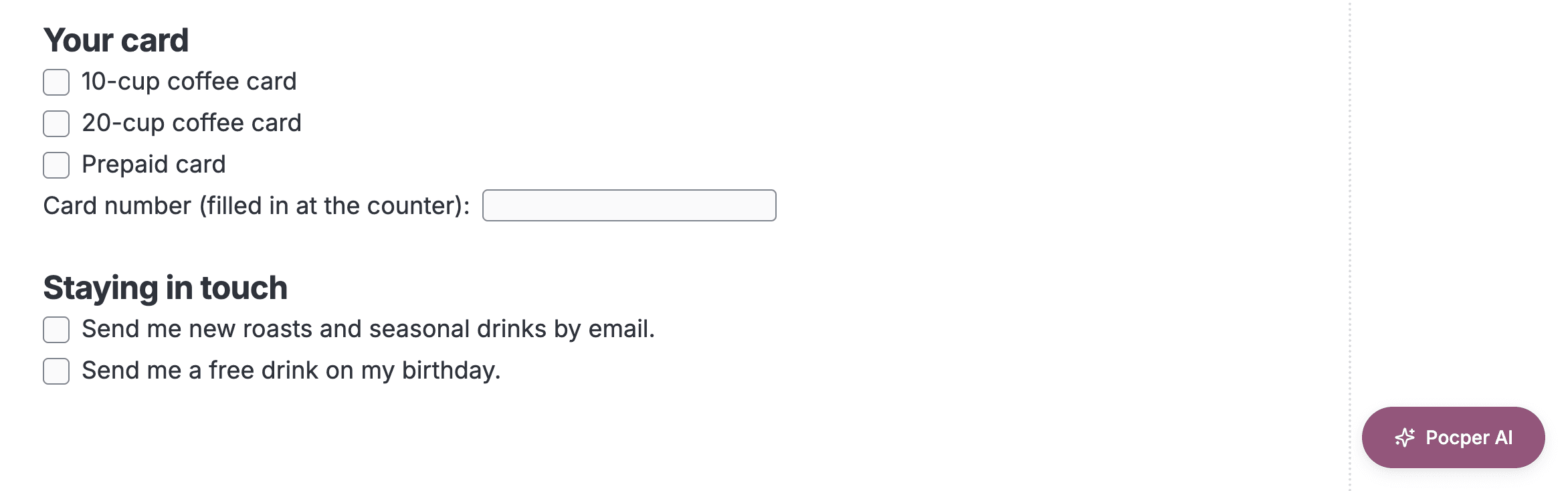
In the editor, on a template or a client's paper, Pocper AI is the launcher in the bottom-right corner. It opens a panel that floats over the document: type what you want changed, and the proposal appears in the document itself.
To start a document from a description, use Generate with AI — a button on a template folder's add row for a template, and a tab in a client's New paper dialog for that client's paper.
2 · Generate a template from a description
One description, one whole template: title, sections and fields, opened in the editor ready to edit. Write the description the way you would brief a colleague — what the document is for, who fills it in, what it must ask — in whatever language you want the template written in.
The draft is written to match the folder it lands in: the same language, the same way of naming sections, and details the folder's other templates already carry, such as the business's own name and address, reused rather than left blank. A value nothing supplies is written as a [bracketed] placeholder for you to fill in.
Pocper AI does not ask follow-up questions. Where the description leaves something open it makes the most reasonable choice, and you adjust afterwards. A very long document is better made as two: describe each part on its own.
A generated agreement is a draft. Review it before you use it.
3 · Generate a client's paper
From a client's page, the New paper dialog has a Generate with AI tab too. The paper is created in that client's file and opens in the editor like any other paper.
It is written to match the templates linked into that client's file — never the client's other papers, and never their answers. Describe what this paper is for and what it needs to ask, then fill in the specifics afterwards.
4 · Edit in chat
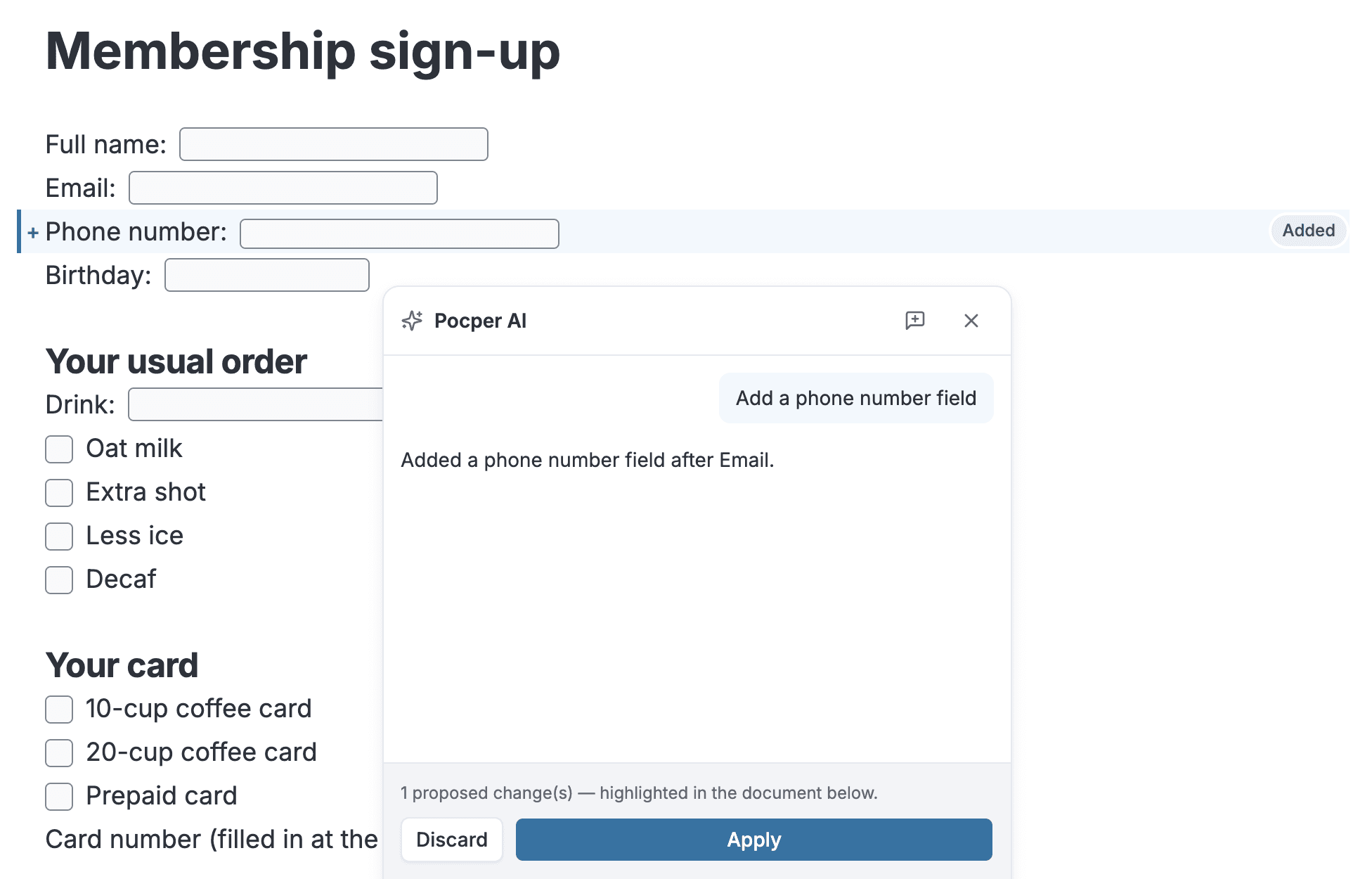
Open Pocper AI on any template or paper and ask for a change in your own words. It can add, replace, delete, move or rewrite blocks; fill in or clear a field's value; set a field's data key and label; and mark a run of text as data. It works from an outline of the whole document, so a request can refer to any part of it.
Every proposal is shown in the document first — added, removed, changed and moved blocks are highlighted — and nothing changes until you press Apply. Discard drops the whole proposal. An applied change is an ordinary edit: undo it with Ctrl+Z, or find it later in version history.
On a client's paper the values are the client's real answers, so Pocper AI changes them only when you ask it to.
Two things it will not do: fill in an upload or a signature field, which only a person can produce; and rewrite a whole document in one go. For that, generate a new one from a description.
5 · What is sent, and what is kept
A request sends the provider an outline of the open document — headings, text and the values in its fields — together with your request and the recent turns of the chat. On a client's paper that outline includes the client's answers. Generating from a description sends the description and the templates the draft is matched to; the Notion mapping sends field and column names, never values.
Pocper keeps no prompts and no conversations; the chat lives in your browser. The full picture is on the security page.
6 · Built in, or your own key
Pocper AI is built in on every plan: a new team can use it straight away, with no API key, within a monthly free allowance the whole team shares. Settings → Pocper AI shows what is left this month and when it resets.
The team's owner can add the team's own AI key in the same place. From then on Pocper AI runs on that key, usage is billed by the provider, and the allowance no longer applies. Removing the key returns the team to the allowance.